Introduction
Virtual Desktop Infrastructure (VDI) delivers a desktop operating system from a central server to remote client devices. Instead of running applications locally, you access a secure and fully managed desktop session hosted on the server. This approach is widely used for remote teams, labs, and businesses that need centralized access with consistent performance.
Vultr’s GPU-powered servers are well-suited for VDI. They offers pre-configured NVIDIA GPUs, and flexible scalability, making them cost-effective for both short-term testing and long-term production environments.
Cendio ThinLinc is an open-source, enterprise-ready remote desktop solution designed for Linux. It supports multiple simultaneous users, integrates with existing Linux environments, and offers both desktop clients and browser-based access.
In this guide, you’ll deploy a ThinLinc server on a Vultr GPU instance, configure GPU acceleration, and connect to your virtual desktop from both a web browser and the ThinLinc client application.
Prerequisites
Before you begin:
- Deploy a Vultr’s Ubuntu Desktop (XFCE) Marketplace Application on a GPU server.
- Access the server using SSH as a non-root user with sudo privileges.
- Update the server.
Install ThinLinc Server
ThinLinc provides a Virtual Desktop Infrastructure (VDI) layer that allows multiple users to connect to your Ubuntu Desktop through a web browser or a dedicated client. Follow the steps below to download and install the ThinLinc server.
- Visit the Cendio download page and download the ThinLinc latest version.
$ wget https://www.cendio.com/downloads/server/tl-4.19.0-server.zip
- Extract the downloaded archive file.
$ unzip tl-4.19.0-server.zip
- Navigate to the extracted directory.
$ cd tl-4.19.0-server
- Start the ThinLinc installation.
$ sudo ./install-server
This command starts the ThinLinc server installation script and prompts you with the following questions:
Run ThinLinc setup now [Yes/no]? Yes
Do you accept the terms of the license agreement [yes/No]? yes
Server type [Master/agent]? Master
Automatically install the necessary packages [Yes/no]? Yes
Externally reachable address to use [ip/hostname/manual]? ip
Administrator email []? user@example.com
Web Administration password?
Install AppArmor configuration [Yes/no]? Yes
- After the installation, verify that all ThinLinc services are running.
$ sudo systemctl status vsmserver vsmagent tlwebaccess tlwebaccess
A brief explanation of each service is shown below:
vsmserver: Manages user authentication, session handling, and reconnections.vsmagent: Launches and maintains user desktop sessions on the server.tlwebaccess: Provides browser-based access to ThinLinc desktops over HTTPS.tlwebadm: Hosts the ThinLinc web administration panel for server management.
Enable VirtualGL for GPU Acceleration
ThinLinc requires VirtualGL to take advantage of the NVIDIA GPU on your Vultr instance. VirtualGL redirects OpenGL commands from applications running in ThinLinc sessions to the GPU for smooth 3D rendering. Follow the steps below to install VirtualGL.
- Download the GPG key for the VirtualGL repository.
$ wget -qO- https://packagecloud.io/dcommander/virtualgl/gpgkey | sudo gpg --dearmor -o /usr/share/keyrings/virtualgl-archive-keyring.gpg
- Add the VirtualGL repository to your system sources
$ echo "deb [signed-by=/usr/share/keyrings/virtualgl-archive-keyring.gpg] https://packagecloud.io/dcommander/virtualgl/any any main" | sudo tee /etc/apt/sources.list.d/virtualgl.list
- Update the package index to include the new repository.
$ sudo apt update
- Install VirtualGL and Glmark2 for GPU rendering and OpenGL testing
$ sudo apt install virtualgl glmark2 xterm -y
- Verify the installation.
$ vglrun --version
Output.
VirtualGL v3.1.3 (Build 20250409)
- Configure the VirtualGL to set permissions and access rules for GPU rendering in ThinLinc sessions.
$ sudo /opt/VirtualGL/bin/vglserver_config
When prompted, choose the following options:
- Select Option 1 to configure the server for use with VirtualGL (GLX + EGL back ends):
Choose: 1
- Accept the warning about disabling local Wayland login:
Continue? [Y/n] Y
- Restrict 3D X server access to the vglusers group (recommended):
Restrict 3D X server access to vglusers group (recommended)? [Y/n] Y
- Restrict framebuffer device access to the vglusers group (recommended):
Restrict framebuffer device access to vglusers group (recommended)? [Y/n] Y
- Disable the XTEST extension for security (recommended):
Disable XTEST extension (recommended)? [Y/n] Y
- Exit the configuration menu:
Choose: X
- Add your ThinLinc user to the
vglusersgroup to access the GPU.
$ sudo usermod -aG vglusers example-user
- Stop the display manager and NVIDIA persistence daemon.
$ sudo systemctl stop sddm nvidia-persistenced
- Unload NVIDIA kernel modules so they can be reloaded with VirtualGL configurations applied.
$ sudo modprobe -r nvidia_uvm nvidia_drm nvidia_modeset nvidia
- Restart your server to apply the configuration changes.
$ sudo reboot
Access Ubuntu Desktop via ThinLinc Client
Follow the steps below to install the ThinLinc client package and access your Ubuntu desktop remotely.
- Log in to your local desktop system and download the ThinLinc client package from Cendio website.
$ wget https://www.cendio.com/downloads/clients/thinlinc-client_4.19.0-4005_amd64.deb
- Install the downloaded package file.
$ sudo apt install ./thinlinc-client_4.19.0-4005_amd64.deb
- Open the ThinLinc Client from the application menu.

- Enter your server’s IP address, username, password and click Connect. You should see your Linux desktop environment running on the Vultr GPU instance.

Access Ubuntu Desktop via Web Browser
ThinLinc also allows you to access your Ubuntu desktop session via a web browser. Follow the steps below to access your Desktop session and verify that the VDI solution is working with GPU acceleration.
- Open your web browser and access your Ubuntu desktop on port 300.
https://your-server-ip:300

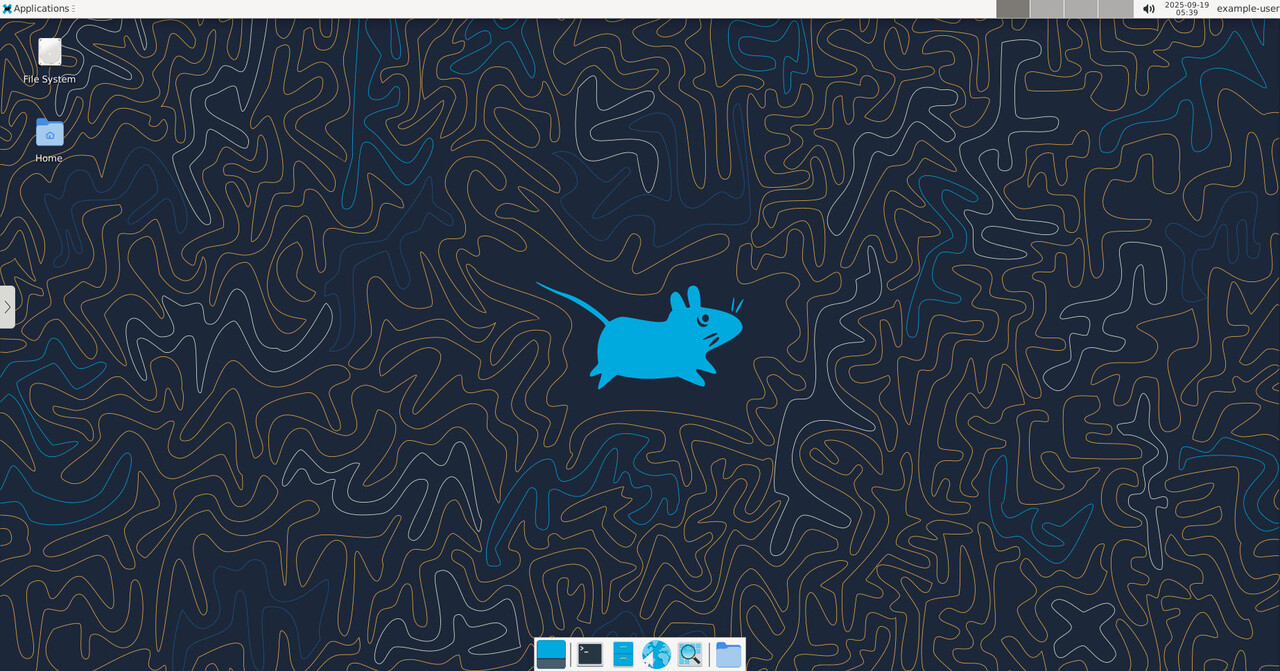
- Log in with your ThinLinc credentials. After logging in, you will see your full desktop session inside the browser window.
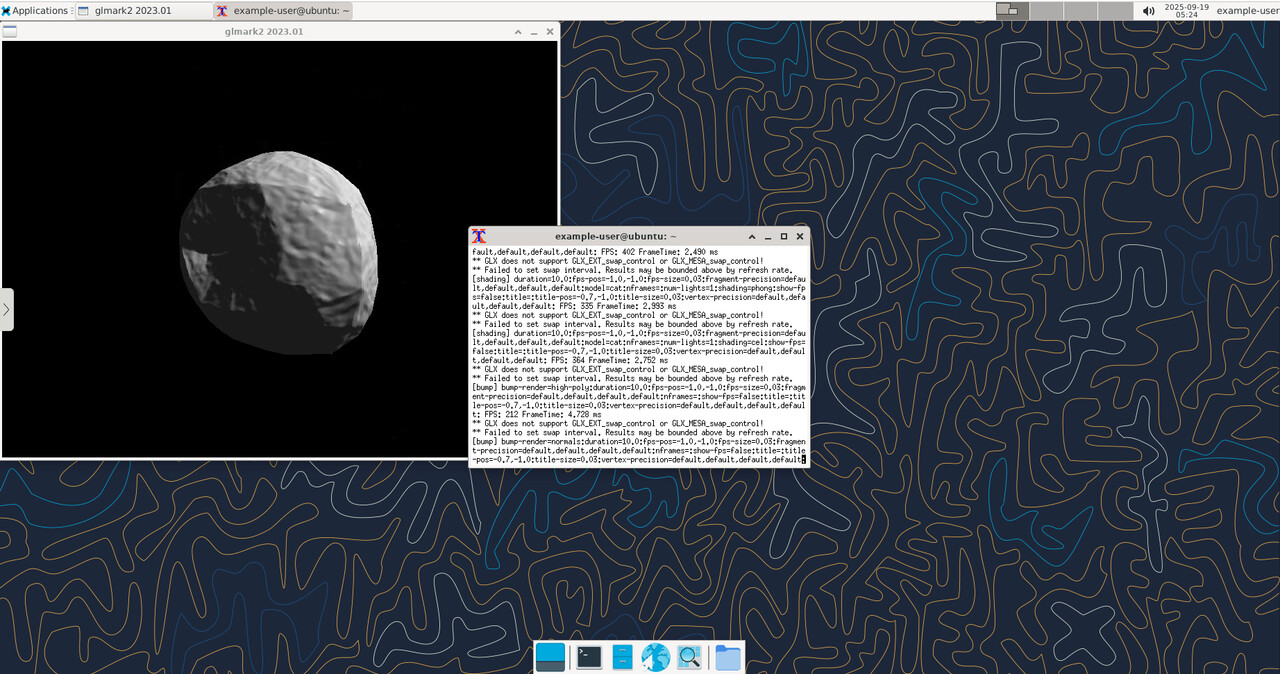
- From within your ThinLinc desktop session, open a terminal and run the glmark2 benchmarking tool to test the performance of your graphics hardware..
$ glmark2 --show-all-options
You should see OpenGL benchmark results, confirming that GPU acceleration is working.
- Open another terminal and run the command below to confirm that your session is utilizing the NVIDIA GPU on the Vultr instance.
$ sudo nvidia-smi
Output.
Fri Sep 19 05:23:45 2025
+-----------------------------------------------------------------------------------------+
| NVIDIA-SMI 550.90.07  Driver Version: 550.90.07  CUDA Version: 12.4 |
|-----------------------------------------+------------------------+----------------------+
| GPU  Name Persistence-M | Bus-Id  Disp.A | Volatile Uncorr. ECC |
| Fan  Temp   Perf  Pwr:Usage/Cap |   Memory-Usage | GPU-Util  Compute M. |
| ||   MIG M. |
|=========================================+========================+======================|
|   0  NVIDIA A40-8Q  Off |   00000000:06:00.0  On |0 |
| N/A   N/AP0 N/A /  N/A  |  85MiB /   8192MiB |  0%  Default |
| ||  N/A |
+-----------------------------------------+------------------------+----------------------+

+-----------------------------------------------------------------------------------------+
| Processes:  |
|  GPU   GI   CIPID   Type   Process name  GPU Memory |
|ID   ID   Usage  |
|=========================================================================================|
|0   N/A  N/A  1341  G   /usr/lib/xorg/Xorg 84MiB |
+-----------------------------------------------------------------------------------------+
Access ThinLinc Control Panel
The ThinLinc Control Panel is a web-based interface that provides administrators with tools to manage their ThinLinc environment. It allows you to configure settings, manage users and sessions, and monitor the status of the server.
- Open your web browser and access your ThinLinc control panel on port 1010.
https://your-server-ip:1010

- Log in with the default username
adminand the password set during installation. You will see the interface as shown in the screenshot above. The menu on the left provides quick access to different administrative areas.

You can now administer your VDI environment directly from a browser, making it straightforward to scale user access and support your server.
Conclusion
In this tutorial, you deployed a Linux Virtual Desktop Infrastructure (VDI) solution on a Vultr GPU instance using Cendio ThinLinc. You installed and configured the ThinLinc server, enabled VirtualGL for GPU acceleration, and verified performance with tools like glmark2 and nvidia-smi. You also connected to your virtual desktop from both the ThinLinc Client and a web browser, confirming that remote sessions benefit from full NVIDIA GPU support.